Network Configuration#
The Network Configuration page has two halves:
- Current network configuration — what the device is doing right now: live addresses, DHCP lease, eth1 routes and a connectivity health check. Read-only.
- Edit configuration — the settings you can change, followed by Test and Apply.
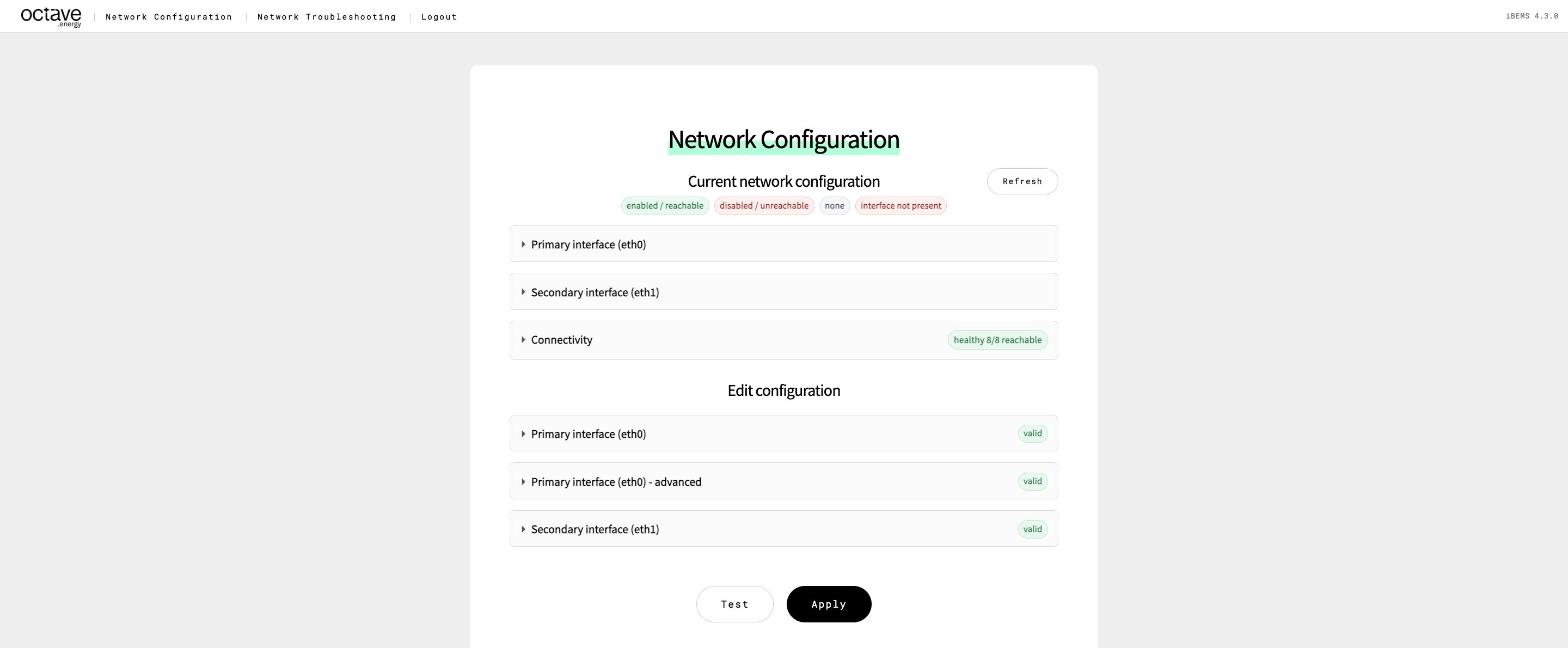
Network Configuration page overview
Read the current state first#
Expand the cards under Current network configuration before you change anything.
| Card | Shows |
|---|---|
| Primary interface (eth0) | Configured mode, live IPv4/IPv6 address, default gateway and DNS servers. In DHCP mode also the lease: DHCP server, lease time, offered gateway and DNS. |
| Secondary interface (eth1) (RevPi only) | Configured IP, direct link routes and the live address — always a /32. |
| Connectivity | A quick health check: link on each interface, default gateway, DNS servers. The badge sums it up, e.g. healthy 8/8 reachable. |
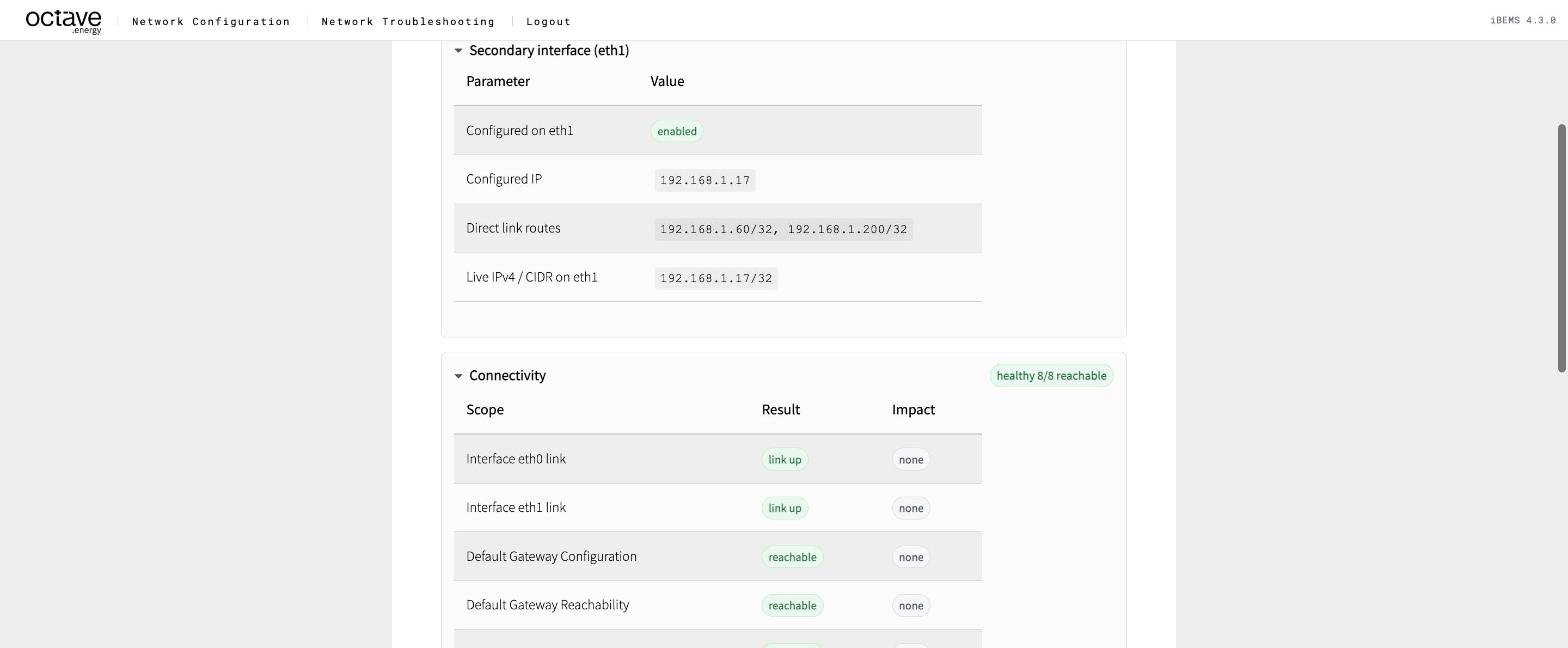
Current state: eth1 and connectivity
The badge colours mean the same everywhere on the page:
| Badge | Meaning |
|---|---|
| green — enabled / reachable | Configured and working |
| red — disabled / unreachable | Configured but failing, or switched off |
| grey — none | Nothing configured |
| red outline — interface not present | The port doesn't exist on this device (e.g. eth1 on an EdgeBox) |
Tip
Take a screenshot of the current state before every change. It's your way back.
The edit sections#
| Section | Contains | Scenario |
|---|---|---|
| Primary interface (eth0) | Mode (DHCP / Static), static IP / CIDR, static gateway, DNS mode and DNS servers | 1, 2 |
| Primary interface (eth0) – advanced | Additional addresses (eth0:1, eth0:2 …), primary routes, IPv6 switch, DHCP server blacklist, DHCP recovery behaviour | 4, 5, 6 |
| Secondary interface (eth1) (RevPi only) | Secondary local IP and direct link routes | 3 |
Each section header shows a valid badge. Invalid field values — a malformed address, or a Static gateway outside the configured subnet — keep Test and Apply disabled, so a malformed configuration can't be applied. This does not validate primary-route gateway reachability: an off-subnet route gateway is still accepted as valid, so check it yourself as described in Scenario 5.
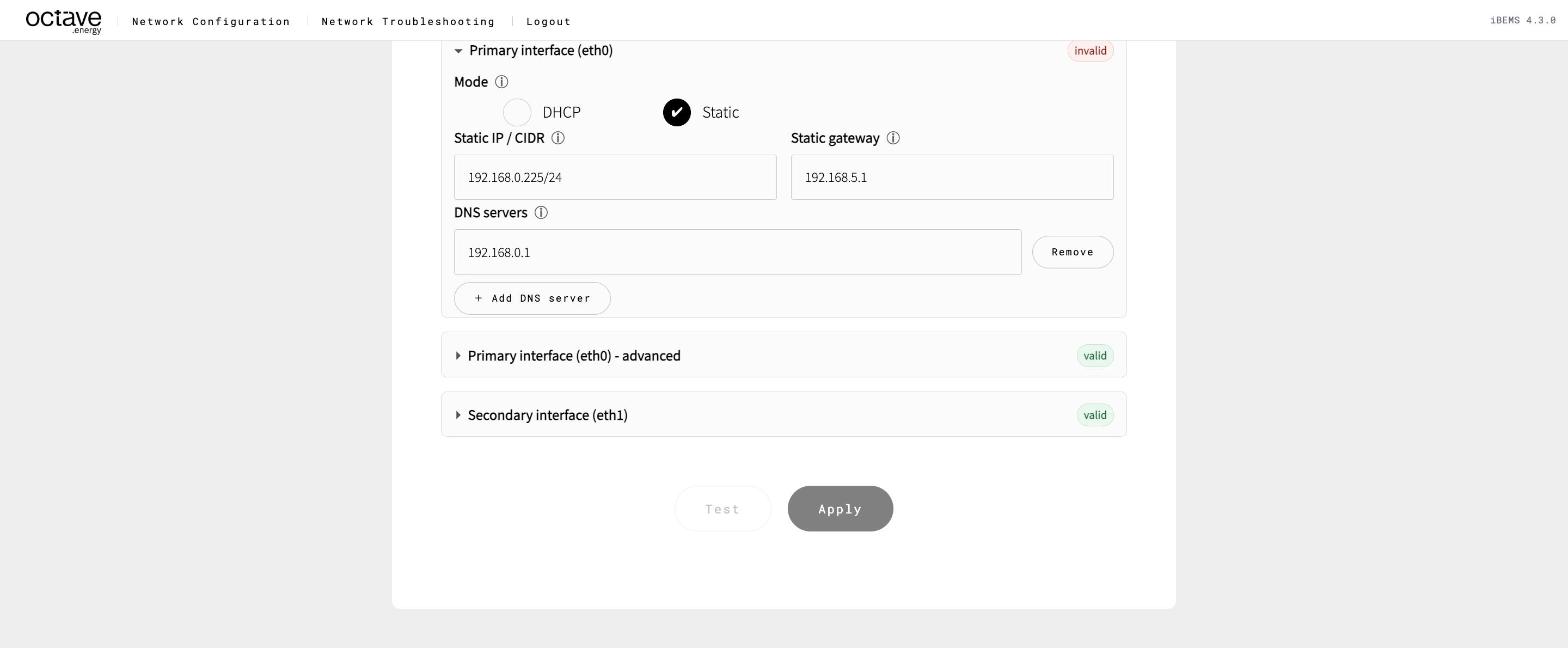
Invalid input disables Test and Apply
Test, then Apply#
Test checks your proposed settings against the network without changing anything. Depending on what you changed, it reports:
| Check | When |
|---|---|
| DHCP offer received — with the offered IP, mask, gateway, DNS and lease | eth0 in DHCP mode |
| IP/CIDR syntactically valid | Static mode |
| Gateway belongs to configured subnet | Static mode |
| Proposed IP appears unused — no ARP reply for the address | Static mode |
| Gateway responds on eth0 | Always |
| DNS server reachable — one row per DNS server | Always |
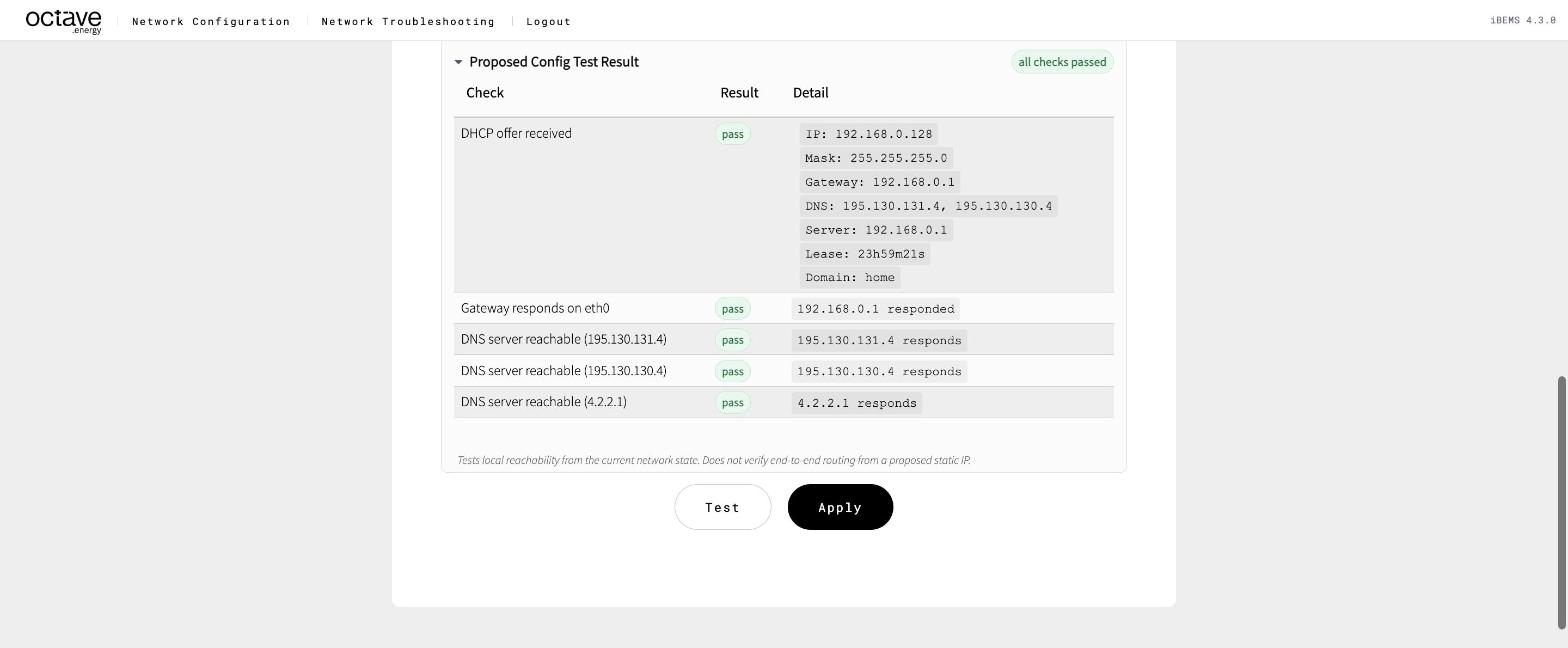
Test result for a DHCP configuration
Info
Test only probes from the device's current network state. It doesn't verify end-to-end routing from a proposed static IP, and it doesn't test routes or additional addresses. After Apply, always confirm with the Troubleshooting page.
Apply writes the configuration and reloads the network service. The page may stop responding for a few seconds.
The safe change workflow#
- Record the current state (screenshot).
- Run the Troubleshooting checks for the devices you care about, so you know what worked before.
- Change one section.
- Test. Every check must pass — or you must understand why it doesn't.
- Apply.
- Reload the page — on the new address if you changed
eth0— and check Connectivity and the Troubleshooting page.
Danger
Changing eth0 changes the address your browser uses. Write down the new address before you Apply. If the page doesn't come back on the new address, octave<serial>.local usually still finds the device as long as your laptop is in the same subnet.
Which scenario am I?#
Most sites combine several scenarios — for example a RevPi with Scenario 3 plus a primary route from Scenario 5.
| # | Question | If yes |
|---|---|---|
| 1 | Does the site hand out addresses automatically (DHCP)? | Scenario 1 |
| 2 | Were you given a fixed IP, gateway and DNS for the device? | Scenario 2 |
| 3 | Is it a RevPi with Octave equipment on the second port? | Scenario 3 |
| 4 | Is a device on the same switch but with an IP from a different range? | Scenario 4 |
| 5 | Is a device behind another router? | Scenario 5 |
| 6 | Does the Octave eth1 range also appear on the site? | Scenario 6 |