Network Troubleshooting#
The Network Troubleshooting page runs standard Linux network tools on the Octave device itself, so you see the network exactly as the device sees it. It never changes the configuration — use it freely, before and after every change.
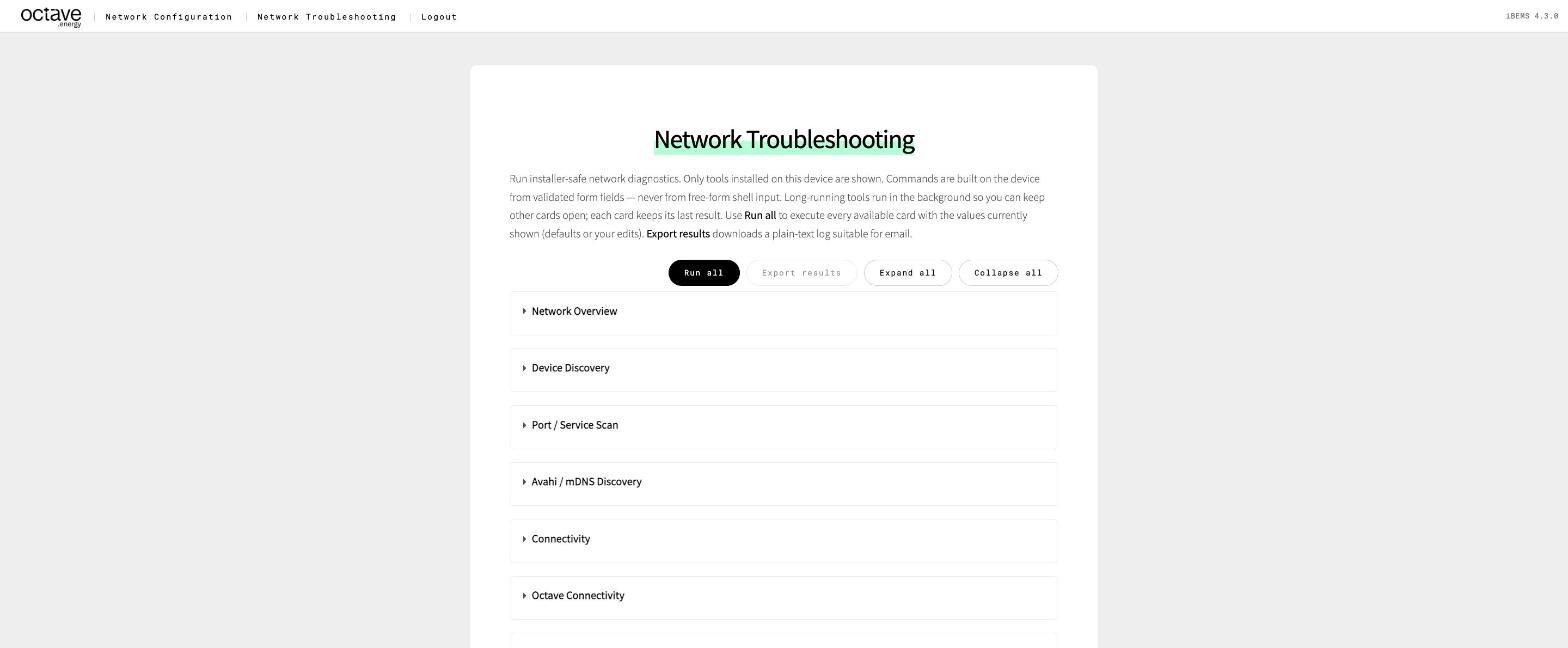
Network Troubleshooting page overview
Each card has its own Run button and keeps its last result. Long-running tools run in the background, so you can start several at once.
| Button | Does |
|---|---|
| Run all | Runs every card with the values currently filled in |
| Export results | Downloads a plain-text log of all results — attach it to the support ticket |
| Expand all / Collapse all | Opens or closes every card |
| Clear results | Empties every card, for a fresh start |
Every card also has Show commands & raw output, which shows the exact command and its output for the support team.
The troubleshooting ladder#
Network problems stack up: a missing route looks like a dead device, and a bad cable looks like a missing route. Test from the bottom up and fix the lowest step that fails.
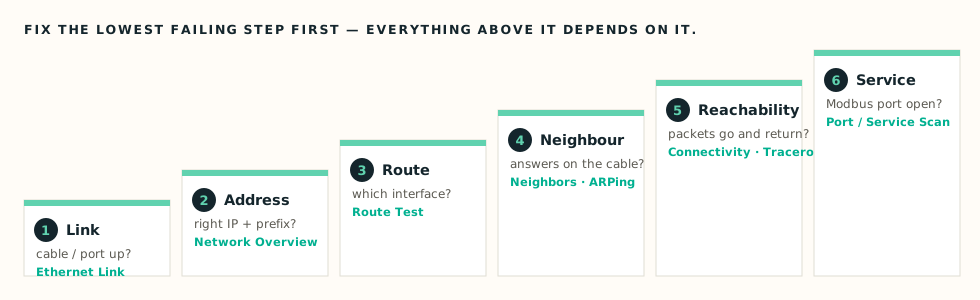
| Step | Question | Card | Good result |
|---|---|---|---|
| 1 Link | Cable plugged in, port up? | Ethernet Link | Link detected, sensible speed (100/1000 Mb/s), full duplex |
| 2 Address | Right IP and prefix on the right port? | Network Overview → Interfaces | Expected addresses on eth0 / eth1 |
| 3 Route | Which interface and gateway will be used? | Route Test | Interface and gateway match your site drawing |
| 4 Neighbour | Does the next hop answer on the cable? | Network Overview → Neighbors · Connectivity with ARPing | A MAC address, state REACHABLE / STALE |
| 5 Reachability | Do packets get there and back? | Connectivity · Traceroute | Ping replies |
| 6 Service | Is the Modbus / web port open? | Port / Service Scan | Port 502 open |
The cards#
Ethernet Link#
Link state, speed, duplex and autonegotiation per interface (ethtool). No link means a cable, switch port or power problem — no setting can fix it. 10 Mb/s or half duplex points to a bad cable or a misconfigured switch port.
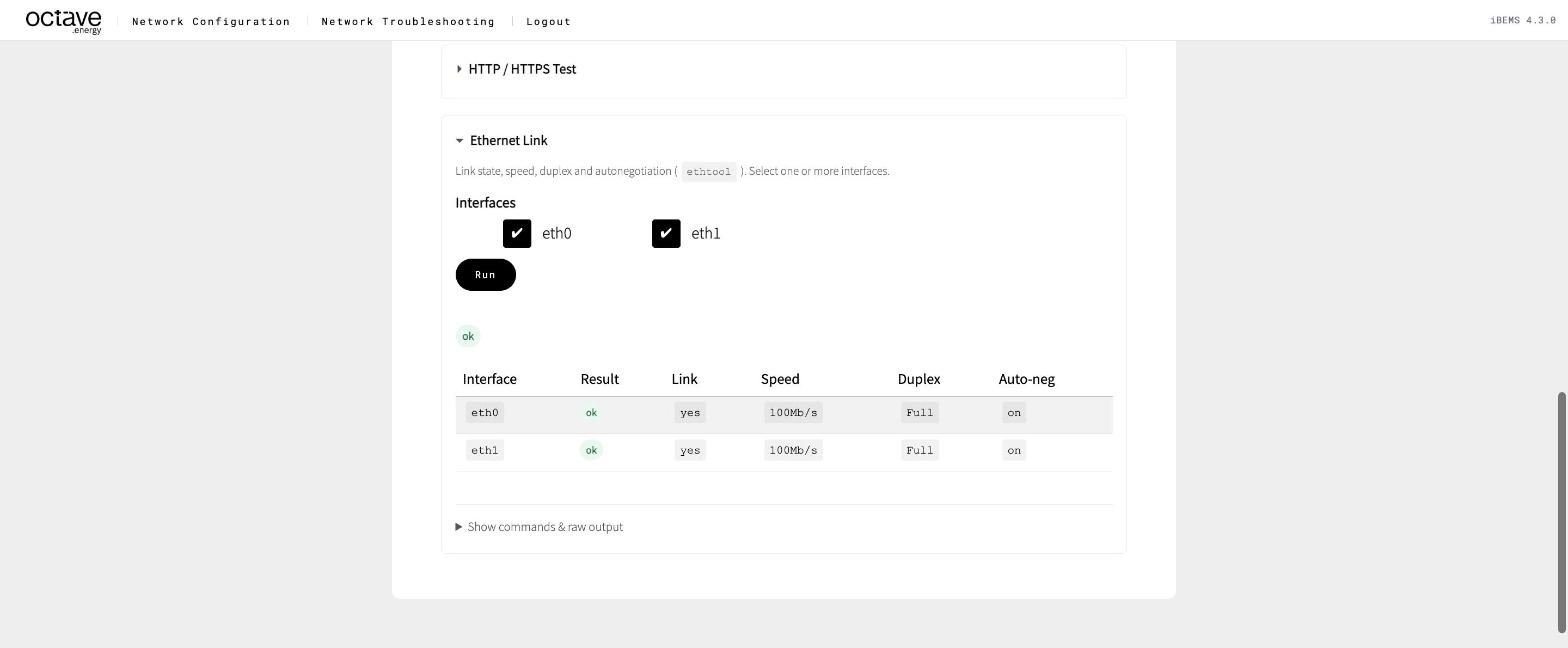
Ethernet Link card overview
Network Overview#
Interfaces, addresses, routes and the neighbour (ARP) table in one view (ip -j). Compare it with your site survey.
| Neighbour state | Meaning |
|---|---|
REACHABLE | Answered recently — it's on this cable |
STALE / DELAY | Answered earlier; Linux will re-check when needed. Still a good sign. |
FAILED / INCOMPLETE | Asked, but nobody answered for this IP on this cable |
Route Test#
Answers the most useful question: "For this destination, which interface, source address and gateway will be used?" (ip route get). Hostnames are resolved first.
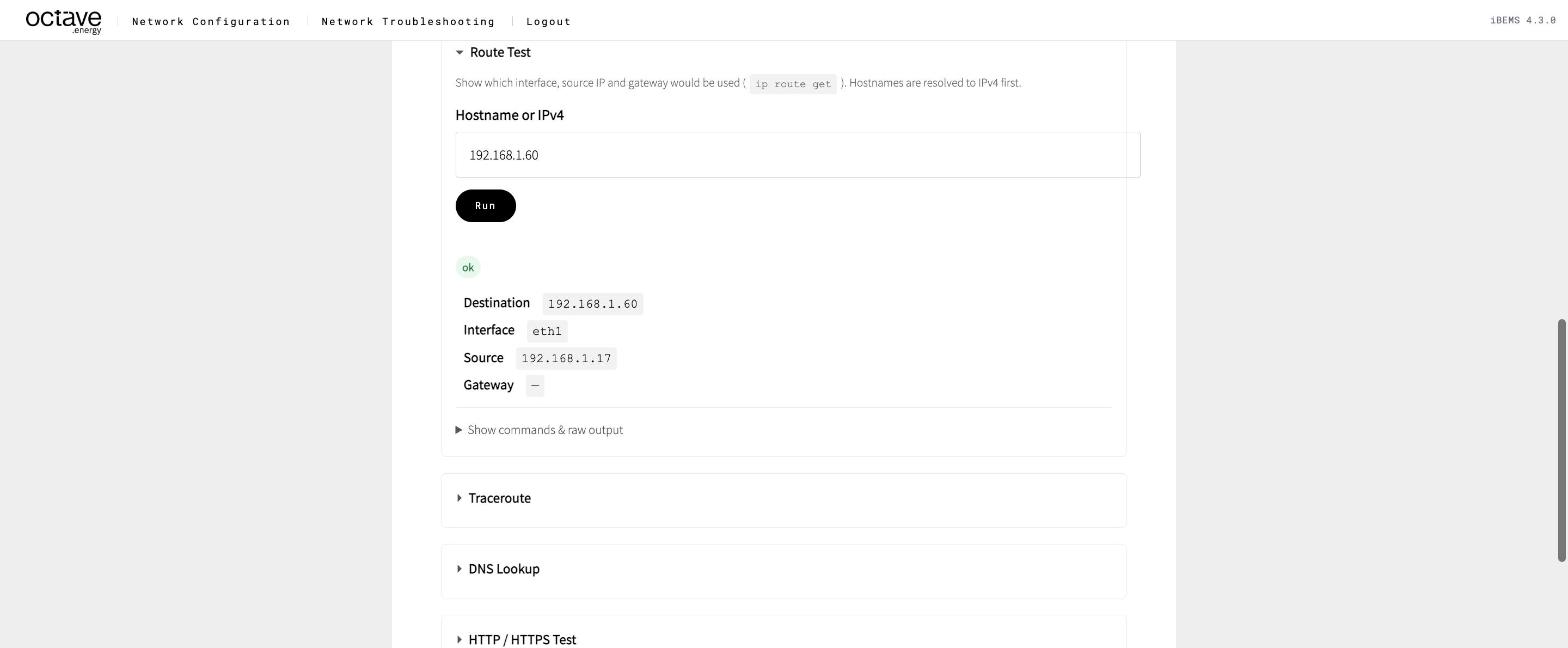
Route Test result overview
Connectivity#
Ping (Layer 3), plus optional ARPing (Layer 2) on the interface you choose. ARPing asks "who has this IP?" directly on the cable, so it still answers when the device ignores ping, and it doesn't depend on routes.
| Ping | ARPing | Meaning |
|---|---|---|
| ✅ | ✅ | All good |
| ❌ | ✅ | The device exists on this cable but ignores ping. Go to the Port / Service Scan. |
| ❌ | ❌ | Nothing answers on this cable for this IP — wrong IP, wrong port, or powered off |
Port / Service Scan#
Scans predefined ports (Nmap) on one IP or up to a /24. Presets: Modbus, Web UI, Modbus + Web.
| Port state | Meaning |
|---|---|
| open | The service accepts connections — the network is fine |
| closed | The host answers, but nothing listens on that port |
| filtered | Something drops the traffic — a firewall on the device or in between |
Device Discovery#
Ping-scans a subnet (Nmap -sn, max /24) to list which hosts are alive. A full /24 takes 30–60 seconds. Useful to find a device whose IP you don't know — on eth0 subnets. For eth1, see Scenario 3.
Avahi / mDNS Discovery#
Lists devices and services that announce themselves (mDNS/Avahi) — for example other Octave devices. Filter by interface and by category: Web, SSH, Octave, Other.
Traceroute#
Shows every router on the way. Use it for devices behind a router to see where the path stops.
DNS Lookup · HTTP / HTTPS Test · NTP Connectivity · Octave Connectivity#
Internet-side checks — see No cloud / internet connection.
Common problems#
| Symptom | Go to |
|---|---|
| A device doesn't respond at all | Device unreachable — step by step |
| Route Test shows the wrong interface | Traffic leaves on the wrong interface |
| A device behind a router doesn't respond | Device behind a router |
| A device works on and off | IP address conflict |
No link, a 169.254.x.x address, or the wrong DHCP server | Link down or no DHCP address |
| Local devices work, cloud doesn't | No cloud / internet connection |
| Ping works, but no Modbus data | Ping works, Modbus doesn't |