Configure alert notifications#
This section guides you through configuring alert notifications in the Octave Portal.
Every contact linked to a site in the portal can configure their alert notification preferences. They can choose which types of alerts they want to receive and through which channels (SMS and/or Email). Your own settings thus do not affect the preferences of other contacts linked to the same site.
How to configure your alerting preferences#
1. Go to Notifications Settings#
Navigate to Octave Portal > My Alerts > Notifications Settings
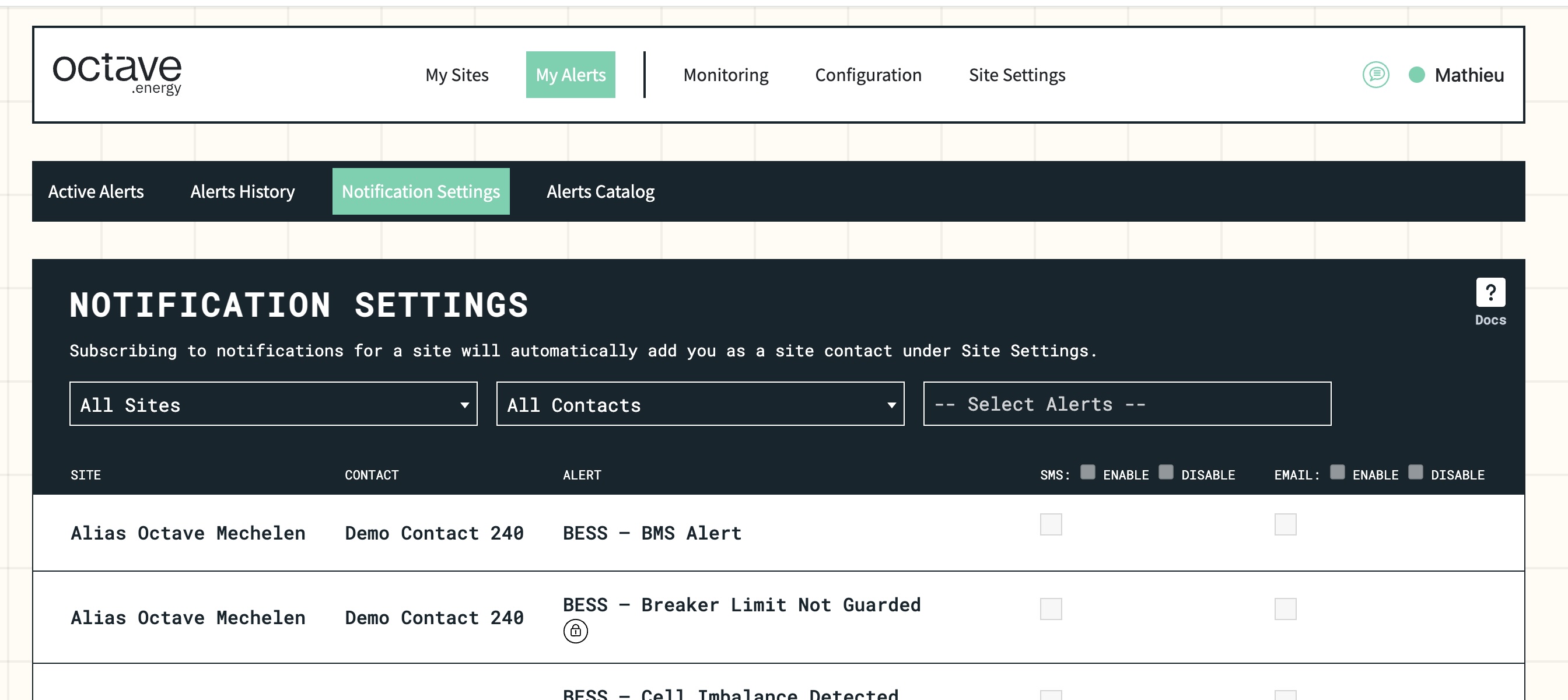
Notification settings page
2. Filter the alerts you want to edit#
By making selections in the dropdowns, you can list the alerts you want to modify. You can select a specific site, a specific alert type, and/or a site contact.
3. Enable your desired notification channels#
Tick the checkboxes next to the channels through which you want to receive alerts via: SMS and/or Email.
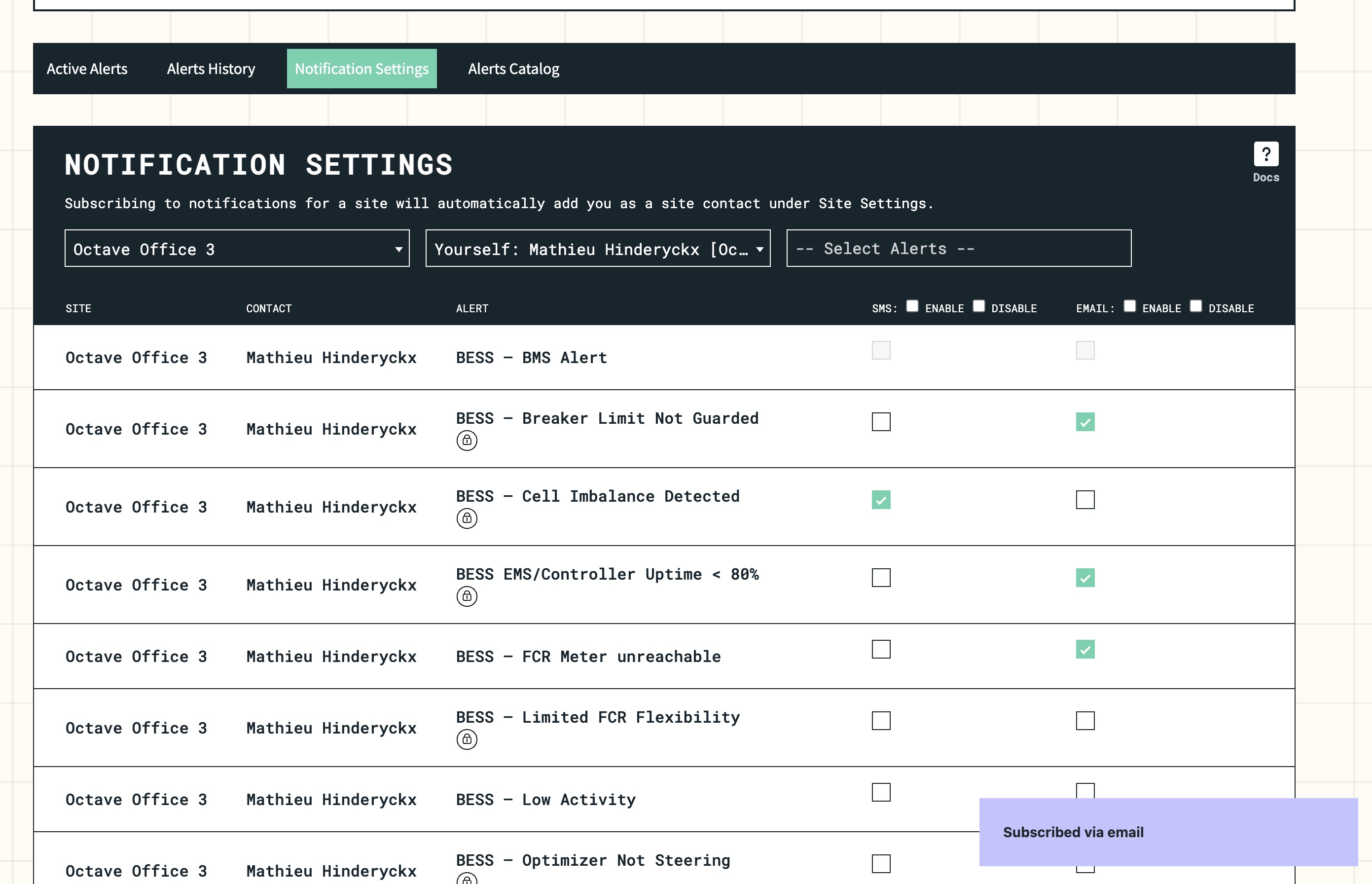
Enable notification channels
If you want to enable multiple notification channels at once, you can use the checkboxes at the top of the table to quickly apply your preferences to all filtered results.
Cannot enable SMS?
That means your mobile phone number is not yet linked to your profile. You can easily add it here: Profile Settings.
Prefer to receive alerts at a different email address?
You can also update your email address in the same Profile Settings page.